
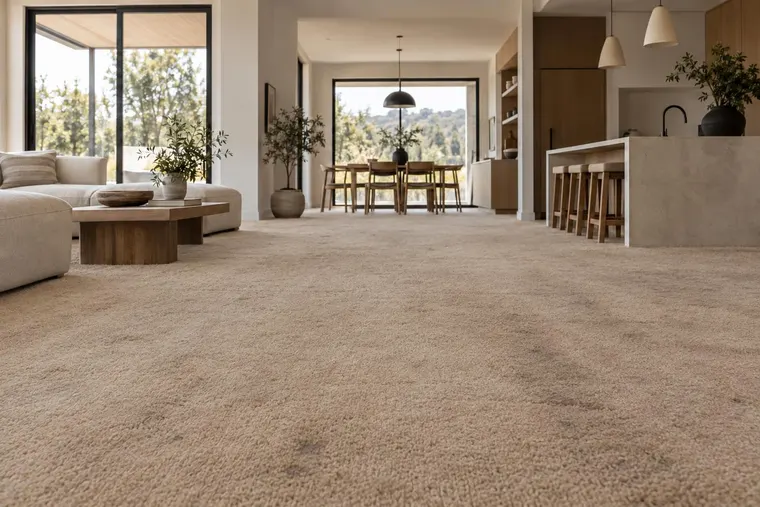
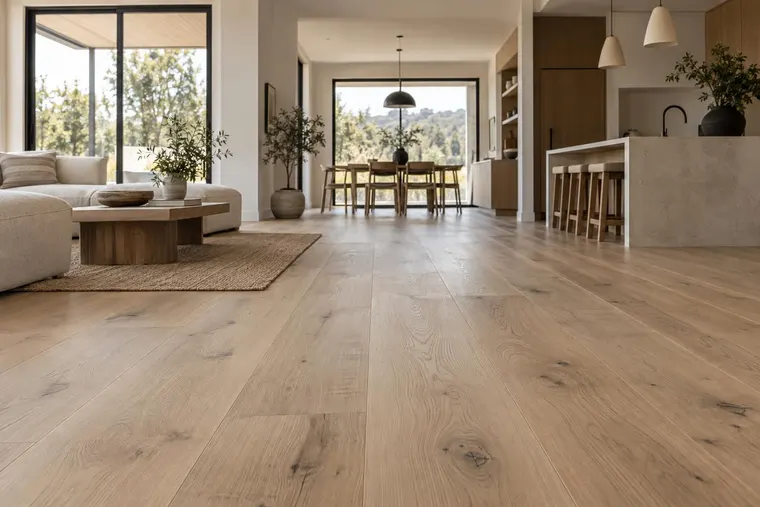
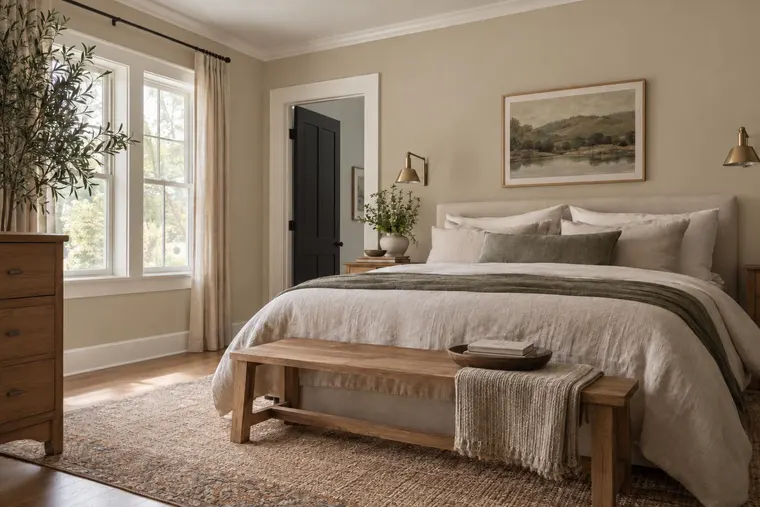
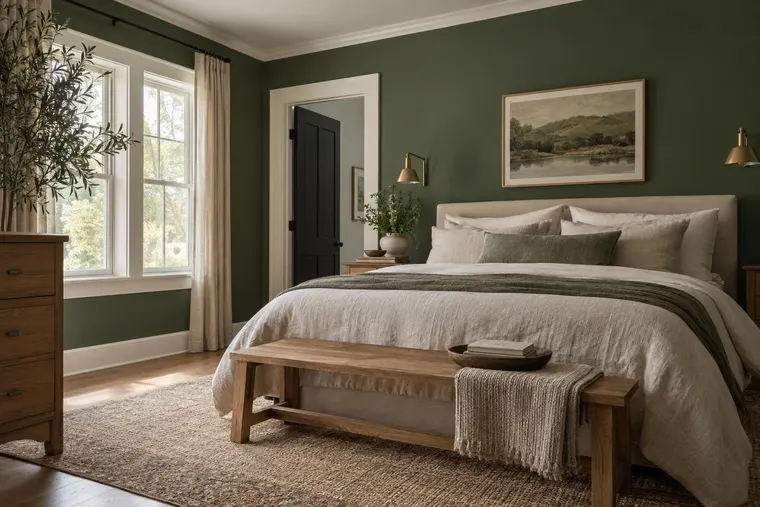
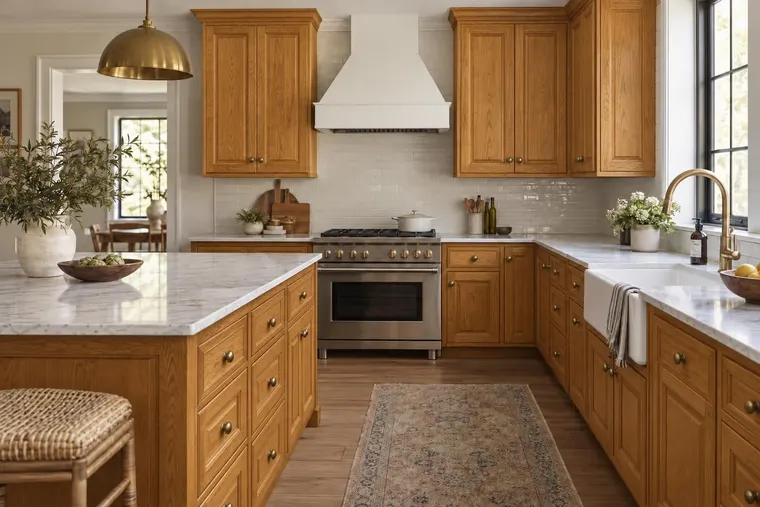
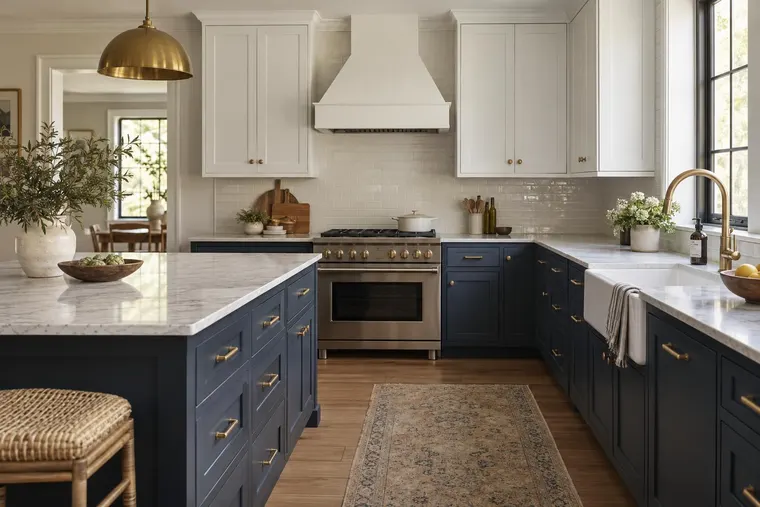
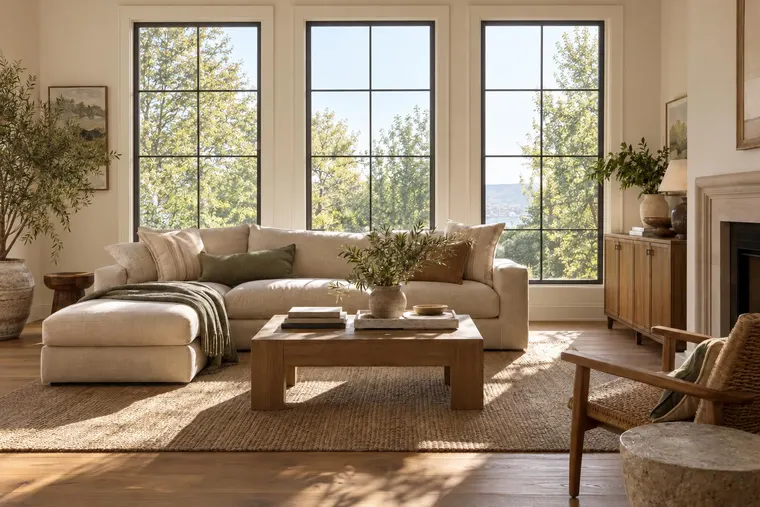
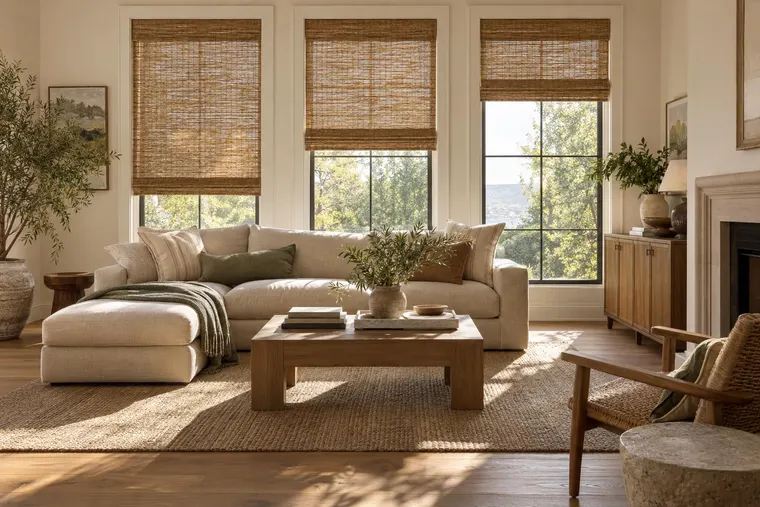
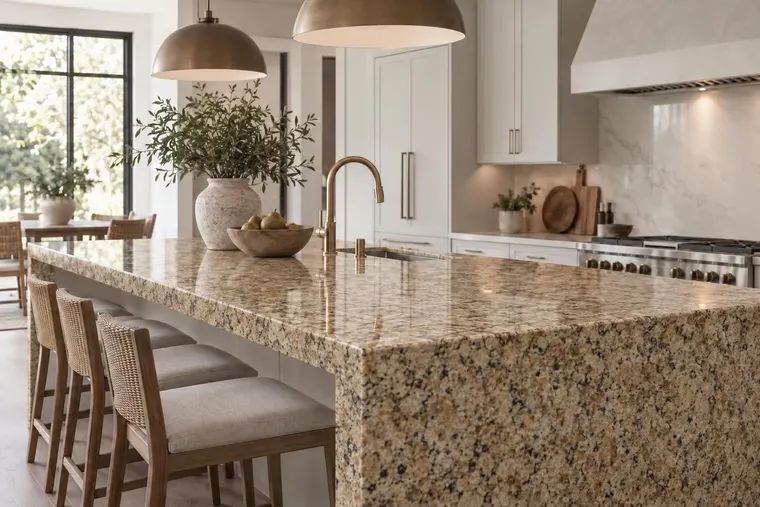
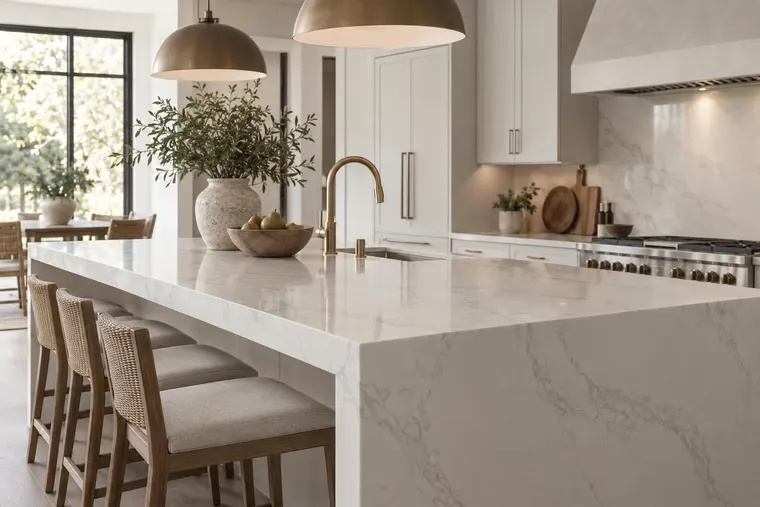
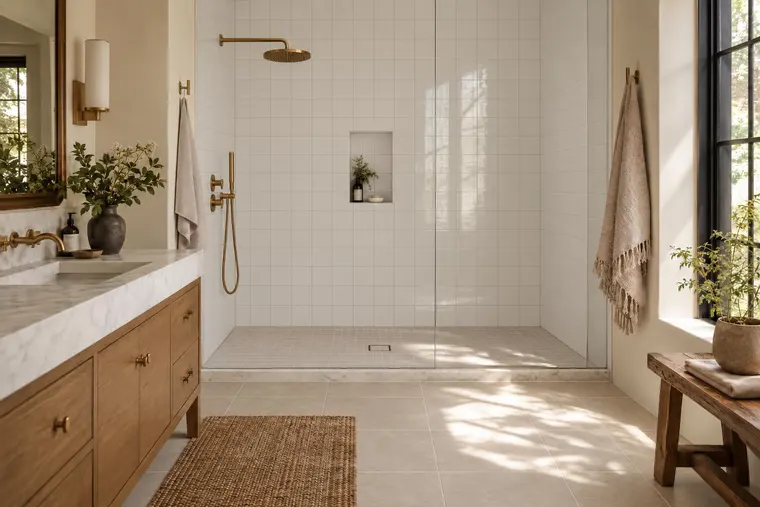
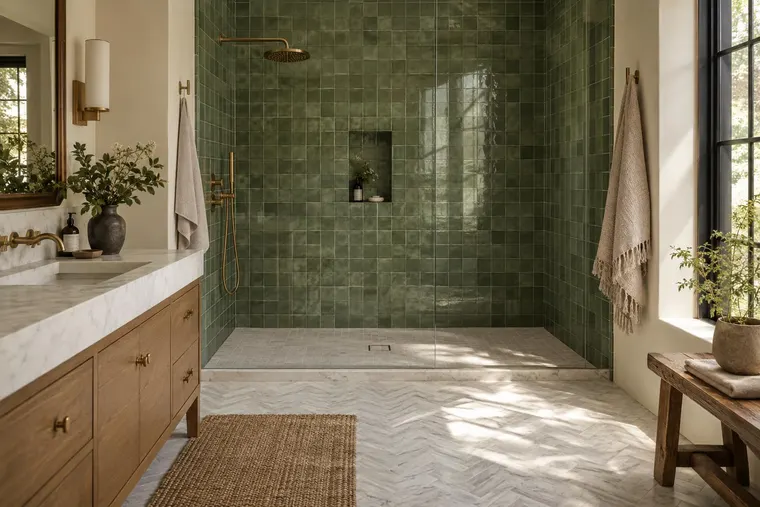
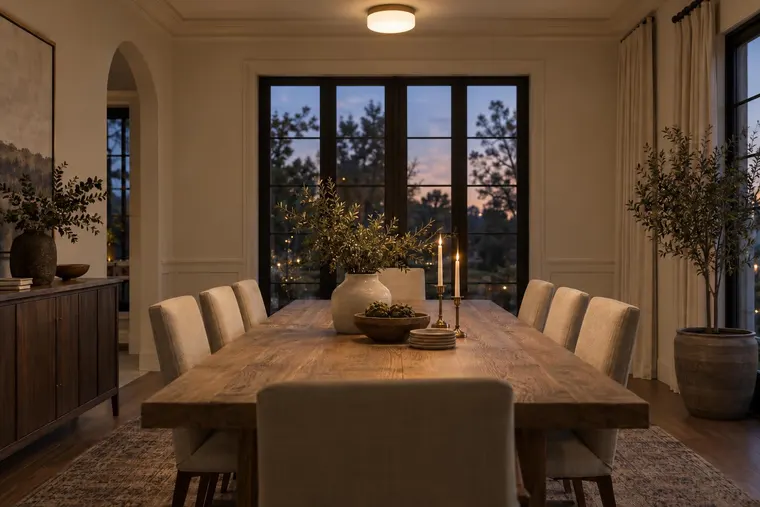
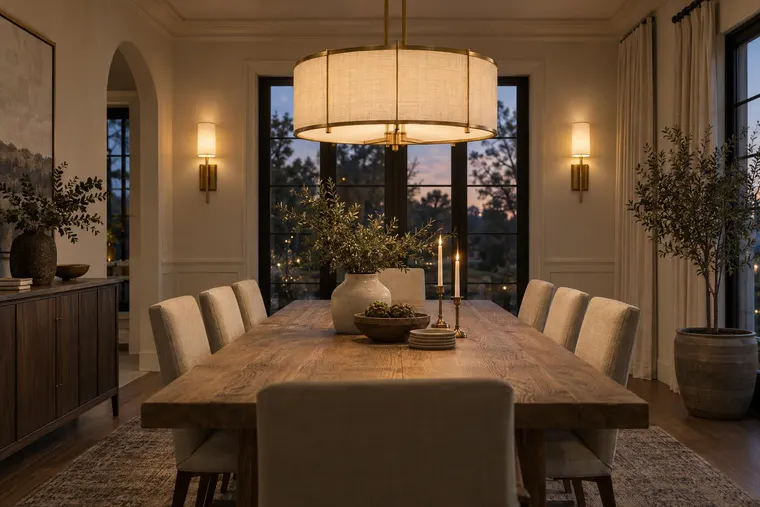
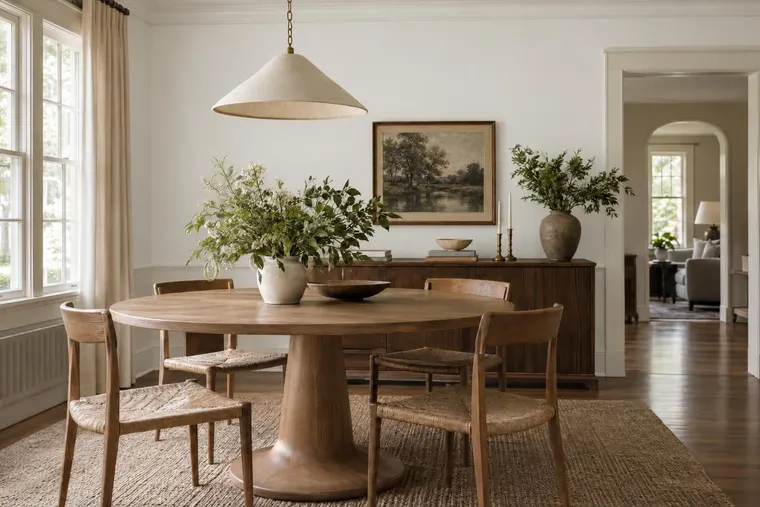
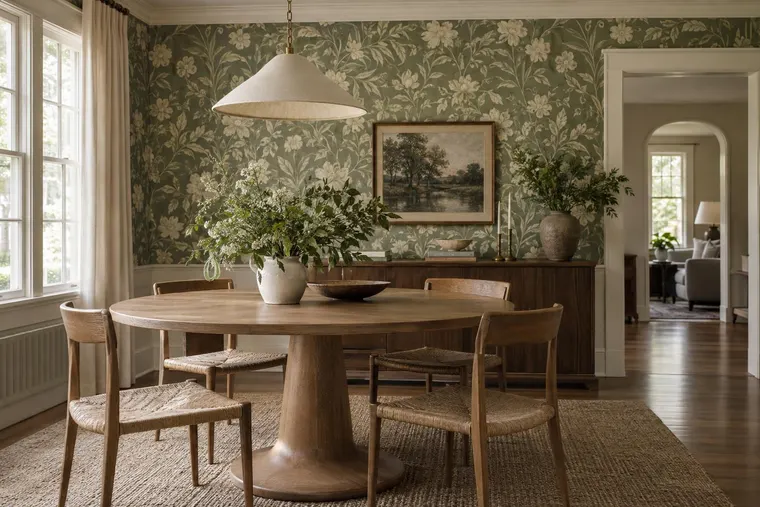
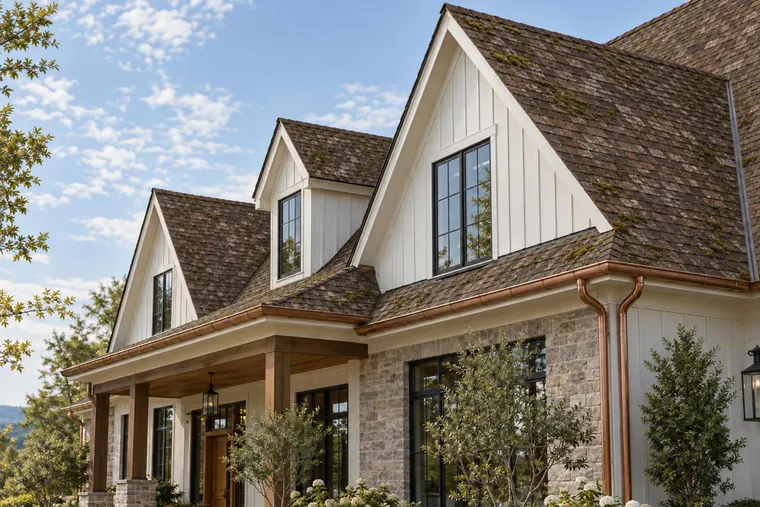
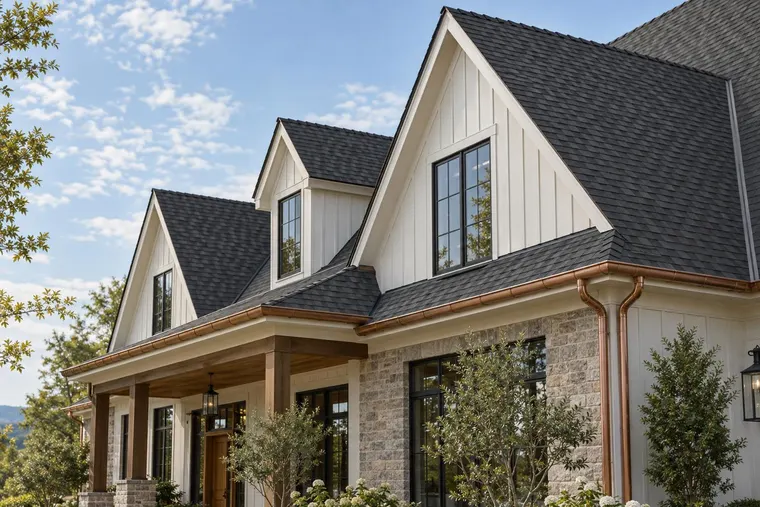
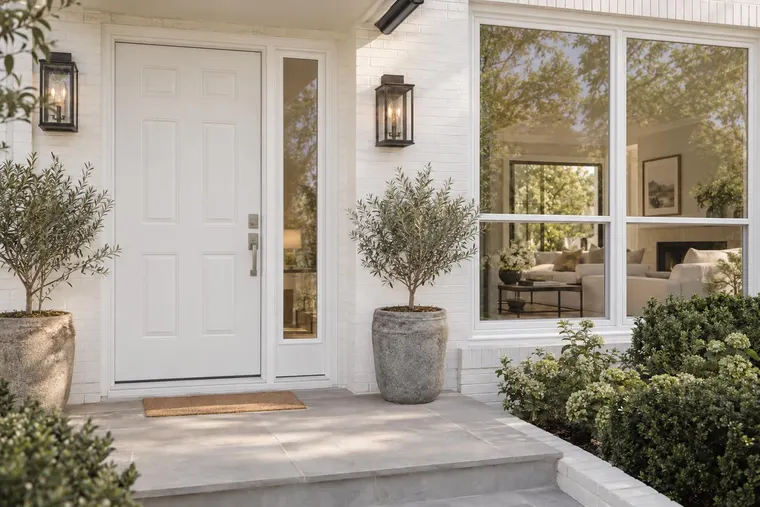
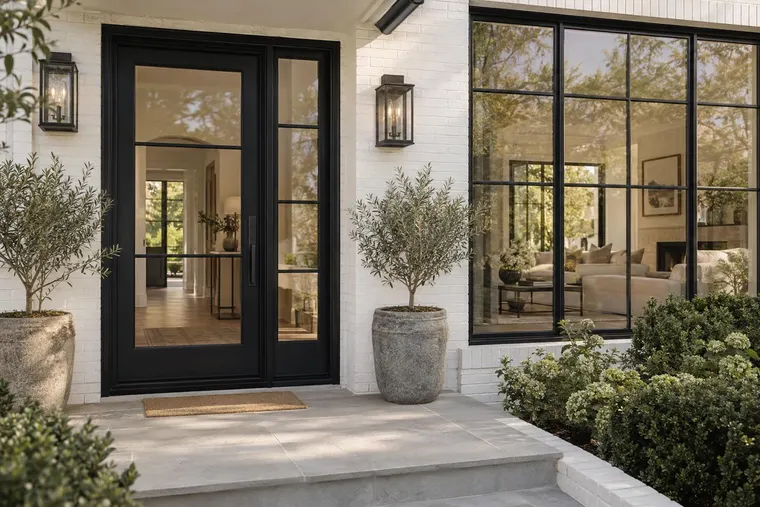
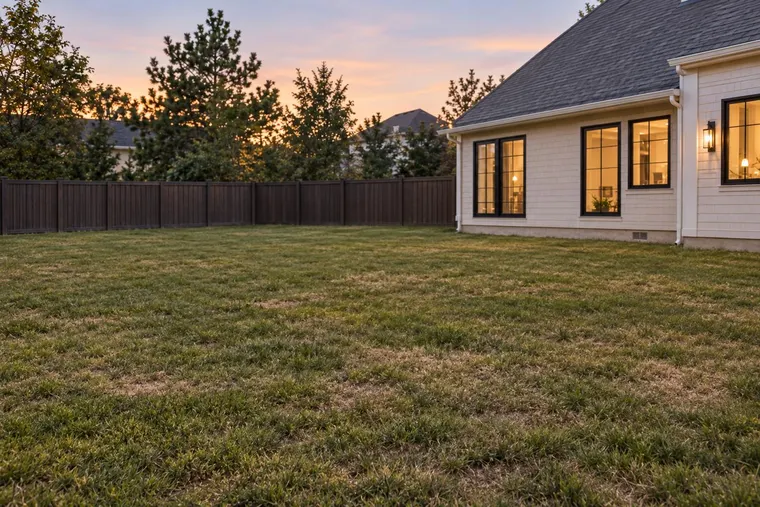
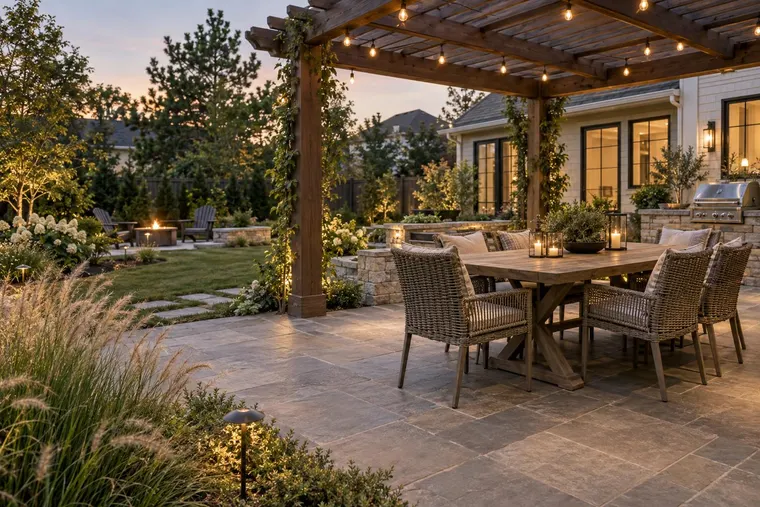
Your listing photos.
A tour video.
Add a listing link or your own photos. Renovate AI turns them into a branded tour video for MLS, Reels and YouTube.
Every part of the video.
Made from the photos.
This video was made from one listing’s photos. Select a part to jump to it.
Motion a photo
cannot show.
Add an effect to any clip. Each effect starts from one listing photo. Effects are optional.
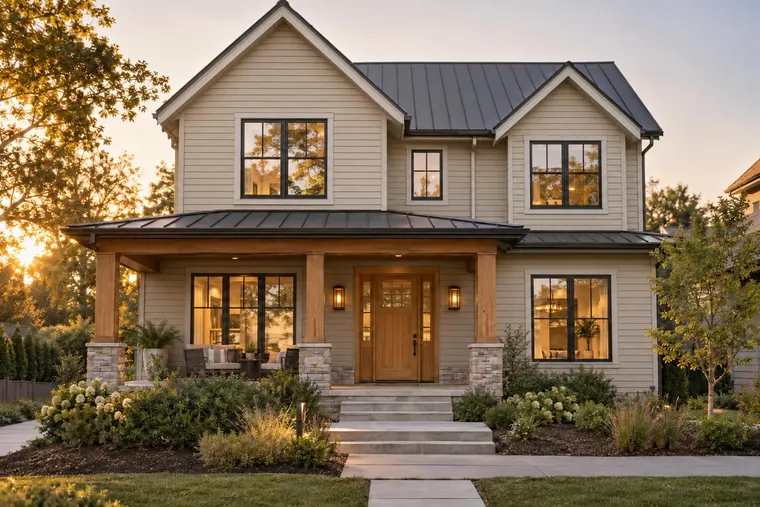
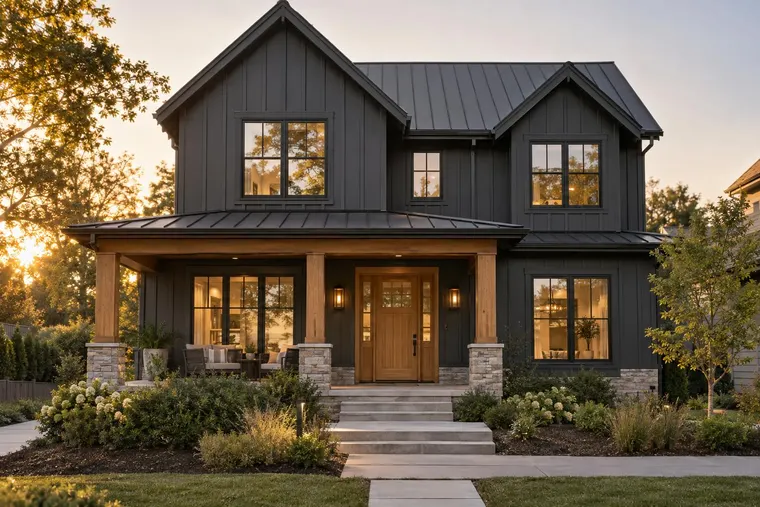
- Day to Twilight The sky turns to dusk and the lights come on
- Construction The home rises from an empty lot
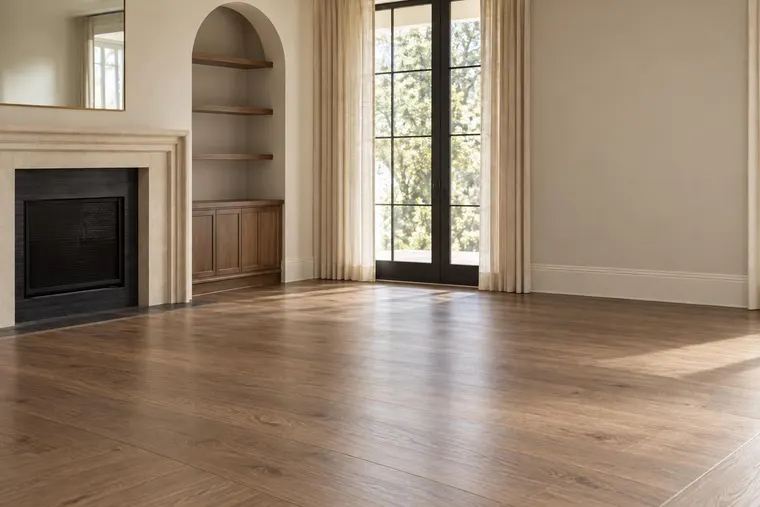
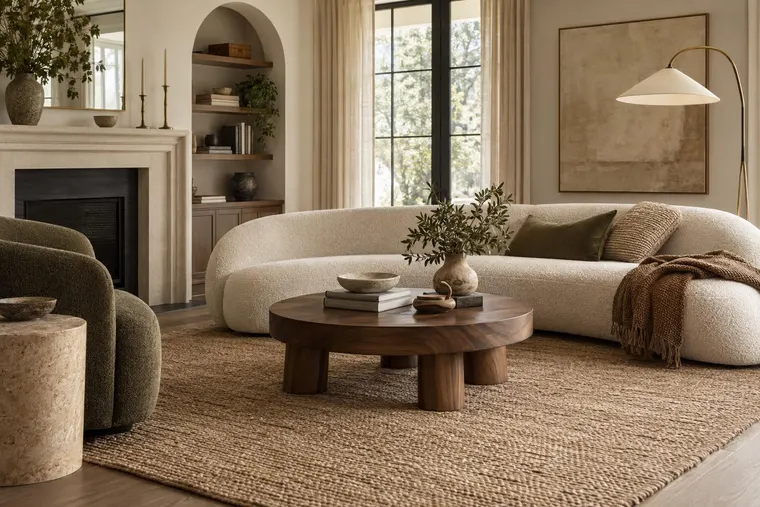
- Virtual Staging Furniture fills an empty room
- Pencil Sketch A drawing becomes the photo
- Starry Night Stars fill the sky over the home
- Word Drop A 3D title lands on the lawn
- Lifestyle People live in the room
- Sunshine Night turns to a bright day
- House Drop The house lands on the lot
- Sway Trees The trees move in the wind
- Ceiling Fan The fan turns
- Shadows Sunlight moves across the room
Your name on
every video.
Start with an intro card. End with your agent card. Add your logo, your phone number and your brokerage.
-
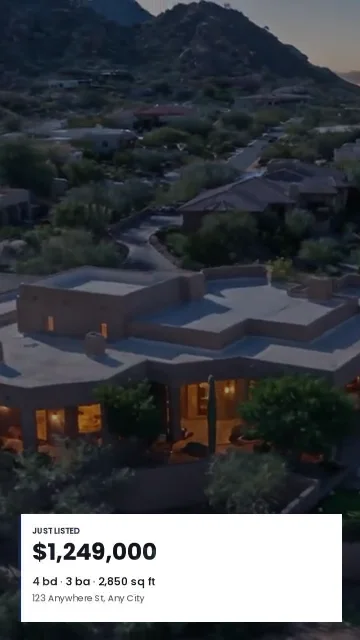 IntroJust Listed
-
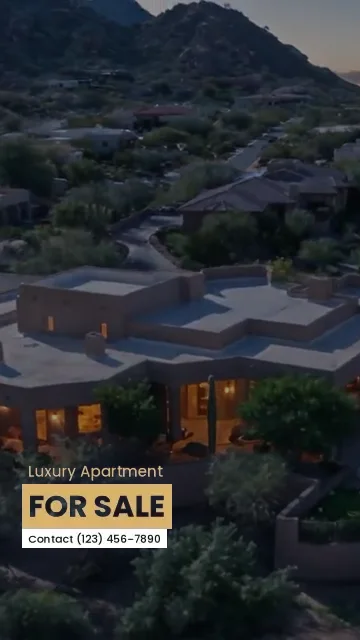 IntroLuxury For Sale
-
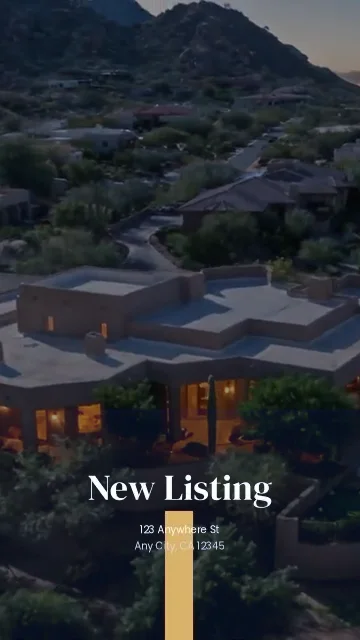 IntroNew Listing
-
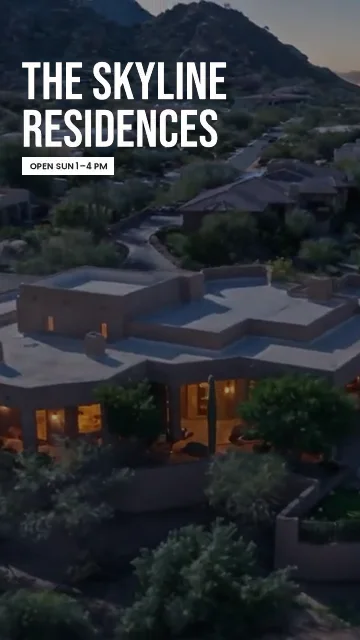 IntroStatement
-
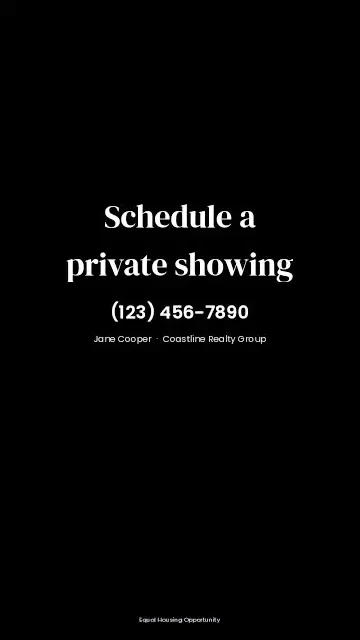 OutroPrivate Showing
-
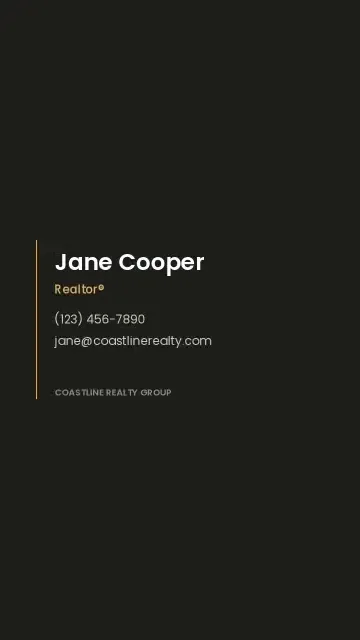 OutroGold Line
-
 OutroAgent Card, dark
-
 OutroAgent Card, light
-
 OutroRooftops
From listing to video
in four steps.
You review everything before you make the video.
- 1 Find the listing
Paste a listing link or type the address. Or upload your own photos.
- 2 Pick the photos
Select the photos for the video and put them in order. Each photo becomes one clip.
- 3 Shape each clip
Set the camera move and the crop. Add an effect to a clip if you want one.
- 4 Make it yours
Add an intro, your agent card, your logo and music. Then make the video.
One listing.
Every place you post.
Pick a format for each video. You set the crop of each photo, so the best part of the room stays in the frame.
- Landscape 16:9 MLS, YouTube and your website
- Vertical 9:16 Reels, TikTok and Shorts
- Square 1:1 Instagram and Facebook feeds
Questions
What do I need to start?
A listing link, a property address or your own listing photos. You do not need video footage or a drone.
Which video formats can I make?
Landscape (16:9), vertical (9:16) and square (1:1). Pick the format before you make the video, then set the crop of each photo.
How do I pay for videos?
You buy a video pack in Renovate AI Studio. Each video you make uses one video from your pack. Your balance shows before you make a video.
Can I change a video after I make it?
Yes. Edit the clips, the music or the branding and make a new version. Your earlier versions stay in the project.
Do effects change what the property looks like?
Some effects add things that are not in the photo, such as furniture or people. You can add a “Digitally altered” label to the video. Check the rules of your MLS before you post.
Can I make videos on my phone?
Yes. Listing videos work in your browser and in the Renovate AI app for iPhone and Android.
Make your first
listing video.
Works in your browser and in the Renovate AI app.